Tuesday, January 31, 2012

SketchUp Pro Case Study: Turner Construction and the WTC, Part 1

Today, we kick off a three-part series profiling Turner Construction Company, one of the largest construction management companies in the world. Turner uses SketchUp Pro at several points in its workflow: planning and coordinating of demolition and construction, creating presentations and providing safety training. They’ve even developed SketchUp plugins to accelerate certain internal processes.

We sat down with Jim Barrett, Director of Integrated Building Solutions, to discuss how Turner is using new technologies and processes to solve everyday problems. In this first installment, Jim tells us about SketchUp Pro’s role in Turner’s World Trade Center Transportation Hub Project.

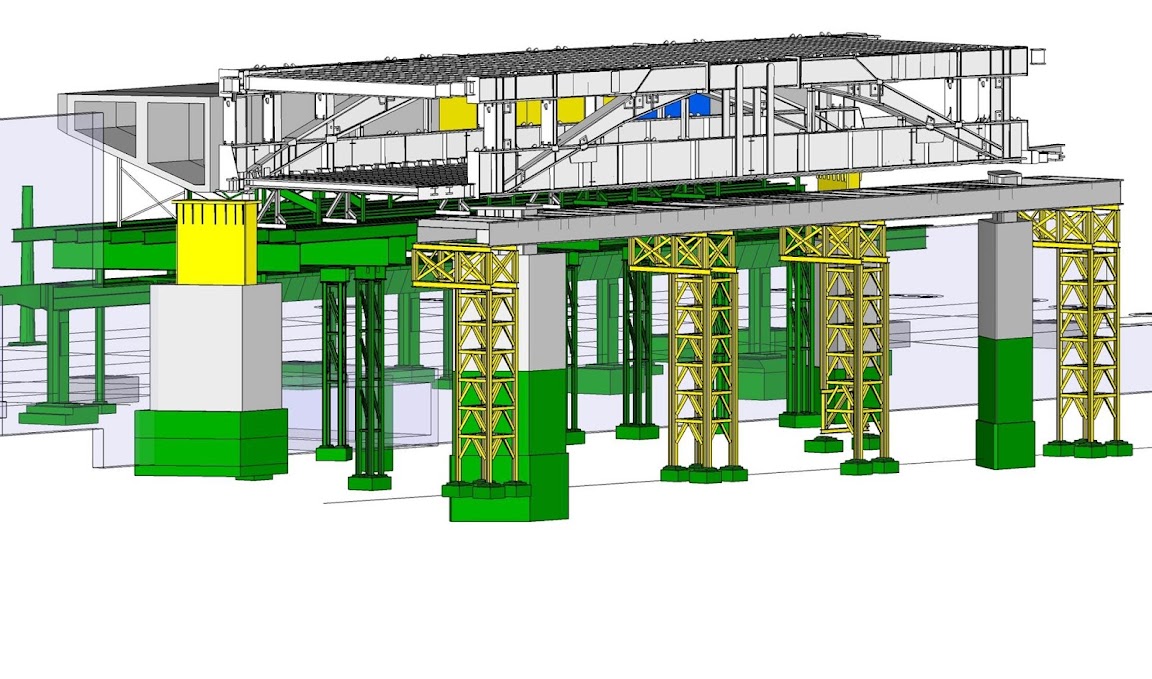
To meet the accelerated schedule and high number of deliverables for the World Trade Center Transportation Hub Project, Turner turned to SketchUp Pro. This project is not only a complex matrix of building system and structural elements; it also requires detailed phasing of demolition and construction to avoid disturbance to the six major subway lines that run within the project extents. Coordination models are essential for planning phasing and coordinating the location of not only the permanent structures, but also the temporary construction items such as formwork, shoring, and bracing.

Detailed model of East Box Girder steel, precast smoke purge ducts, and temporary shoring.

Weekly work-in-place presentation updates are automated through a custom Turner plugin (which we’ll discuss in Part 2 of this post) for exporting images to slide presentation software. The ability to customize workflows provides Turner with the opportunity to combine constructibility studies with graphic information about the schedule and clearly represent this information to the project team.

Work in place tracking of 1-train subway structure and temporary shoring towers. Both subway and PATH train service are maintained while construction is taking place.

Interoperability is key for Engineers at Turner. SketchUp Pro’s ability to import and save to exchange file formats allows the team to compile models from multiple disciplines, regardless of the model’s software origin. In this way, the team can quickly study complex details and integrate additional information to an existing model.

PATH Hall roof steel ribs, vierendeel truss, and adjacent to Memorial Pavilion structure.

We’d like to thank Jim and Turner Construction for chatting with us. In part 2, we’ll explore a couple of Turner’s custom plugins used to bring existing processes into the simple, efficient and visual environment of SketchUp Pro.

Posted by Gopal Shah, SketchUp Marketing

Thursday, January 26, 2012

Organic modeling made simple with Curviloft

The process of extruding one 2D profile such that it ends in another, different 2D profile is often called lofting. There’s no easy way to do this in plain ol' SketchUp, but there are plenty of plugins that make it possible. The one I’ve been obsessed with lately is called Curviloft; it's by the venerable Fredo6. If you need to learn about plugins in general, including how to install them, visit the plugins page on our website.

Curviloft lets you do three basic operations; which one you use depends on what you’re trying to accomplish. For the sake of brevity (and simplicity), I’m going to focus on only the first operation in this post: Loft By Spline.

The Basics

Let’s say you have two profiles that you want to connect together. The example below is super-simple: It’s a circle directly above a square. Here, I want to connect the two with a shape that goes directly between them. Curviloft’s Loft By Spline tool was made for just this kind of thing.

I start with two flat profiles (shapes) positioned one above the other.

Fredo6's Curviloft plugin includes three handy tools. This post deals with the first one: Loft by Spline. To use it, you need two or more profiles. These can be closed shapes (as above) or simple, unconnected edges (see the end of this post for an example).

With nothing selected, I activate Loft By Spline and click once on each shape. Because there are only two, it doesn’t matter which shape I click first. If there were more than two, I’d click in the order that I want to connect them, starting at either end. When both profiles are numbered, I click the green checkmark in the Curviloft toolbar (see below). This brings me into Preview mode, where I can see what I’m about to end up with.

Activate the tool, then click on the profiles you'd like to use as the endpoints for the shape you're trying to create. When you're done, click the green checkmark to enter Preview mode.

The Curviloft toolbar is complicated; there’s no getting around it. The good news is that you don’t have to understand what all the controls do in order to use the tool. In Preview mode, you can just click things to see what happens. There's no shame in experimentation.

The Curviloft toolbar is a doozy, but you can (and should) click buttons to see what happens. Every case is different, and some settings look better than others.

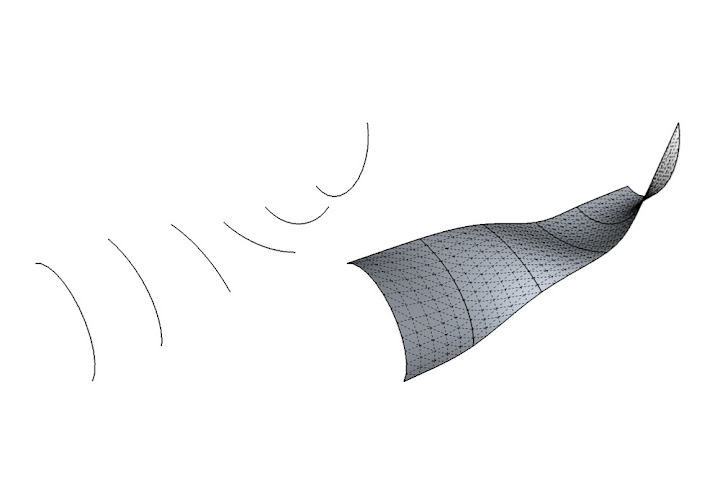
When you perform a Loft by Spline operation with Curviloft, the tool is generating two different kinds of geometry which it later combines. Intermediate profiles (left) are "in-between" 2D shapes spaced between the profiles you start out with. Splines (right) are lines that connect adjacent profiles together. They can be straight or curvy, depending on the settings you choose.

I like to fiddle with the Spline Method settings first (see below). This is where you control the shape of the vertical lines (splines) that connect the two profiles—in this case, the circle and the square. The three options that I find give the most interesting results are “Junction by connected lines”, “Bezier curves – Respect tangency (Method 2)” and “Junction by Orthogonal Bezier Curves”. By all means, try the other buttons, too; there’s gold in them thar hills.

Different settings usually produce fairly different results. Click around until you like what you see.

Playing with the Vertex Matching controls also yields some useful options (see below). Here, you’re telling Curviloft how to decide which points on the perimeter of each profile should connect to one another. In this case, the circle has 24 endpoints and the circle only has four. The tool does its best to figure out the intermediate geometry, but the Vertex Matching settings let you provide guidance. For me, the most interesting button is the one on the far right; often, deselecting “Orientate contours to their best-fit box” seems to produce better results. Click it a few times to see what happens.

To be honest, I really don't understand what these buttons do. I have eyes, though, and I can tell what looks good and what doesn't. I bet you can, too.

When you’re satisfied, hit Enter on your keyboard (or click the green checkmark on the toolbar) to finish generating the result.

I'm delighted every time I do one of these operations. Modeling this "by hand" would take so long that I doubt I'd even bother attempting it.

Cool variation #1: Twisting


While you’re still in Preview mode, clicking on black part of your preview object opens yet another set of controls. The Properties of the Edited Junction window shows you more information about the connections in the operation you’re doing. My favorite widgets here have to do with twisting; they let you rotate either of your profiles (in this case, the circle and the square) by 15 or 90 degree increments. The result is an insanely cool twisting effect. Click the little right and left arrows and you’ll see what I mean. Addictive, no?

Twisting 3D forms is one of those things that SketchUp modelers have resigned themselves to never being able to do. When I discovered this functionality in Curviloft, I got up and danced around.

Cool variation #2: Offset profiles

Loft by Spline works great on profiles that aren’t lined up perfectly, too. Below, I’ve moved and rotated the circle.

Your profiles don't have to be directly on top of one another to use Loft by Spline.

Again, trying different Spline Method settings produces pretty wildly different results.

Using straight splines connects the profiles in a very direct manner. Choosing a curvy spline method produces a much jauntier shape.

I dare you not to waste an afternoon playing with Curviloft. The other two tools in the set let you loft along a path and "skin" connected profile edges, but Loft by Spline is pretty powerful on its own. Remember that Curviloft is donationware, meaning that if you like it, you can contribute to its author; you'll find an option to do so in the Curviloft menu after you install it.

Here are some quick examples of shapes I whipped up while I was working on this post:

Both profiles are identical, but I used the twist options to spiff things up a little.

Lofting between a complex profile and a simple one can be tricky, but the smooth transition that ensues is always lovely. Rocket? Tree trunk? Bicycle handlebar grip?

Your profiles needn't be fully-enclosed faces. Try lofting between arcs and other edges to produce all kinds of things that would be painful to model without Curviloft.

I used Curviloft to model parts of this queen I'm making. Some of us on the SketchUp team are collaborating on a 3D printed chess set.

I've written about a couple of Fredo6's other terrific plugins in the past. RoundCorner gives you the ability to quickly and easily create rounds and fillets on almost any shape. FredoScale is a toolkit for stretching, bending, twisting and otherwise deforming your models in incredibly useful ways.

Google Earth 6.2: It's a beautiful world

[Crossposted from the Google Lat Long blog]

We're taking bird's eye view to a whole new level with the latest version of Google Earth, released today. With Google Earth 6.2, we’re bringing you the most beautiful Google Earth yet, with more seamless imagery and a new search interface. Additionally, we’ve introduced a feature that enables you to share an image from within Google Earth, so you can now simply and easily share your virtual adventures with family and friends on Google+.

A seamless globe
The Google Earth globe is made from a mosaic of satellite and aerial photographs taken on different dates and under different lighting and weather conditions. Because of this variance, views of the Earth from high altitude can sometimes appear patchy.

Today, we’re introducing a new way of rendering imagery that smoothes out this quilt of images. The end result is a beautiful new Earth-viewing experience that preserves the unique textures of the world’s most defining geographic landscapes—without the quilt effect. This change is being made on both mobile and desktop versions of Google Earth. While this change will appear on all versions of Google Earth, the 6.2 release provides the best viewing experience for this new data.

Grand Canyon before and after

Sri Lanka before and after

Share your explorations with Google+

Google Earth is a great way to virtually explore the globe, whether revisiting old haunts or checking out a future vacation spot. With the Google Earth 6.2 update, we’ve added the option to share a screenshot of your current view in Google Earth through Google+. If you’ve already upgraded to Google+, you can share images of the places you’ve virtually traveled to with your Circles, such as family, friends or your local hiking club. To try this new feature, simply sign in to your Google Account in the upper right hand corner of Google Earth and click “Share.” Images of mountains, oceans, deserts, 3D cities, your favorite pizza shop on Street View—you can now experience all these amazing places around the world with people on Google+.
Search improvements

We’ve also made some updates to the search feature in Google Earth. Aside from streamlining the visual design of the search panel, we’ve enabled the same Autocomplete feature that’s available on Google Maps. We’ve also introduced search layers, which will show all the relevant search results (not just the top ten), so now, when looking for gelato in Milano, you can see all the tasty possibilities. Finally, we’ve added biking, transit and walking directions, so if you’re itching for a change of scenery or looking for a new route for your regular commute, you can now use Google Earth to generate and visualize all your options.

Posted by Peter Birch, Product Manager, Google Earth

Monday, January 23, 2012

CustomMade: A community design marketplace

Here’s an interesting twist on our Make Ideas Real project: sometimes great designs aren’t your ideas. The good folks at CustomMade.com have developed a marketplace that connects roll-up-your-sleeve makers with people who have project ideas they want to bring to life. (Editor's Note: CustomMade is part of the Google Ventures portfolio.) Have an idea for a one-of-a-kind armoire? On CustomMade there are about 3,000 contractors who can help you bring that idea to life.

"Kari’s Armoire," contracted, designed and sold on CustomMade.com, Michael Colca

Of course, if you’re one of those designers and you find yourself competing with 2,999 others, affordable and efficient design software is a pretty key resource. Enter SketchUp. CustomMade’s CEO Mike Salguero recently shared a few compelling projects that were brought to life using SketchUp:

White Oak and Wenge coffee table, Jon S Manss

Sure enough, SketchUp plays a critical role in not just the design of CustomMade projects, but in the collaborative conversations between clients and artisans. Jason Hernandez, of Jason Andrew Designs, uses SketchUp to fuel the ideation and iteration process between clients and contractors: the end result, a project that both parties can buy into.


Posted by Mark Harrison, Community Manager

Message from CustomMade.com
Have you started designing your dream project with SketchUp? Post a project description on CustomMade’s “Get it Made” job board and upload .skp files as attachments. Artisans interested in building your custom project will have the chance to experience your inspiration in 3D and contact you. Let the collaboration begin!

Tuesday, January 17, 2012

New Book: SketchUp for Game Design

I’ve yet to meet a SketchUp modeler who doesn’t—at least just a little bit—want to work in the video game design industry. I get a stupid grin on my face when I think about how much fun it it would be to make battle tanks and exploding oil drums and secret doors for hidden basements full of zombies. In the gaming world, boring things like gravity and cost take a backseat to novelty and sheer coolness.

But how to turn your SketchUp habit (and job cranking out toilet stall details) into days full of armor design and wandering through bad neighborhoods looking for interesting photo-textures to shoot?


Google SketchUp for Game Design is Robin de Jongh’s newest book; he also wrote SketchUp 7.1 for Architectural Visualization. It presumes that you’re a SketchUp beginner, but then quickly gets on to the good stuff:

  • Finding good resources for photo-textures
  • Using Meshlab to convert your models in useable 3D game assets
  • Working with the Unity 3D game engine (which is widespread, free-or-low-cost middleware for designing game levels)
  • Creating high-quality textures for games
  • Adapting your models for use in video games
  • Authoring custom levels
  • Modeling low-poly game assets (including cars) and selling them online

Robin’s writing is accessible and easy to follow. He packs a lot of information into each page, but manages to keep the tone friendly and even funny at times. While the book’s in black and white, color versions of the images are available from the publisher’s website.

Posted by Aidan Chopra, SketchUp Evangelist

Wednesday, January 11, 2012

What would you 3D print?

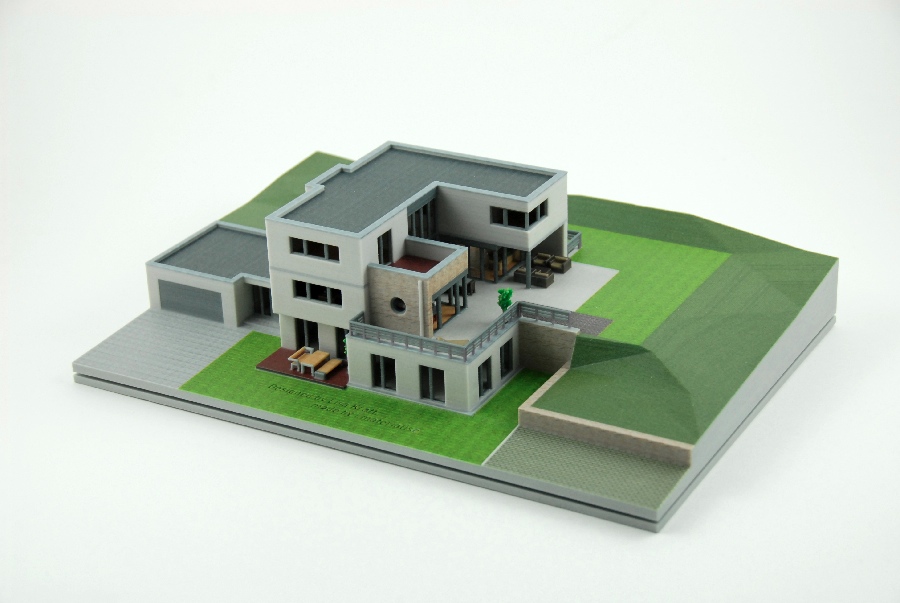
It’s easy to see why 3D printing has captured the imaginations of modelers around the globe -- it’s captured ours as well! Being able to hold what you’ve modeled in your hand brings a new dimension (no pun intended) of understanding and usefulness to the 3D design process.


We’re curious to learn more about what SketchUp users want out of 3D printing: if you were going to (or already have!) print a SketchUp model, what would it be? Take a couple minutes to let us know.

Posted by Mark Harrison, Community Manager

Tuesday, January 10, 2012

The strengths of autism shine in 3D

About 8 years ago, the SketchUp team started receiving some pretty intriguing calls: parents of children on the autism spectrum were calling to let us know how SketchUp was changing their kids’ lives. People with autism tend to be unusually strong visual and spatial thinkers, and it became clear that SketchUp plays to those strengths. With that bit of information (and help from the Autism Society of Boulder County), we launched Project Spectrum with a single goal: connecting the autism community with SketchUp.
For some children on the spectrum, especially those who are nonverbal, SketchUp serves as a way to communicate allowing them to share their thoughts through images. Other kids learn life skills that help them to achieve educational and career goals they might not have even aspired to before SketchUp. It seems SketchUp builds self-esteem since these children are able to model circles (and squares) around their neurotypical peers.
Certified SketchUp instructor Steve Gross teaches two children how to use the SketchUp at an iSTAR camp.

It was these anecdotes that inspired Cheryl Wright, Associate Professor in Family & Consumer Studies, at the University of Utah, to study the SketchUp/autism connection in detail. Cheryl and her team have hosted several SketchUp camps, called project iSTAR, for dozens of children with autism.

Cheryl’s team studied hundreds of hours of video of campers, and last month they published a paper in the Family & Consumer Sciences Research Journal outlining their findings. While the camp set out to develop a skill set that could lead to potential employment, Utah researchers found several added benefits, such as stronger interpersonal relationships and greater confidence due, in large part, to a focus on the kids’ talents instead of their disorder. Cheryl explains, “[The campers] talents are often invisible. In our program, we provided a platform for their talents to shine.”

This, of course, is only a taste of the study’s findings, and we encourage you to read the team’s article to learn more. Lastly, we’d like to thank the University of Utah for helping us, and the world, understand how we can better prepare children on the autism spectrum for success. We look forward to continuing to forge new learnings that will enable us to touch more lives.

Posted by Tom Wyman, Project Spectrum

Monday, January 9, 2012

Make Ideas Real: Projects for You, Projects for Me

Reviewing the hundreds of designs that SketchUp users have submitted to the Make Ideas Real project, we’ve noticed that a large number of submissions could be described as “useful.” (Shocker right? People design things for a reason!)

For some folks, “useful” means a project they’ve designed and built for their personal use. For instance, these two submissions are great examples of (small and big) personal projects modeled on SketchUp:

Bird's Eye Maple Side Table by Chris Donaghue

Tool Shed by Gary Watson

“Useful” also means creating something of value for other people, and then actually selling it! Consider the Kapsule Lightstand, a lighting accessory for the Amazon Kindle, designed by Jonathan Hirschman of the NYC SketchUp User Group. (PS You can actually help fund this project through Kickstarter!).

Kapsule Lightstand by Jonathan Hirschman

We were also impressed by this Apple cord holder from Dean Heckler of Heckler Design:
another Kickstart project with great design, and also a great design story:


Whether you design projects for yourself or for the rest of the world, we want to see what you’ve created. If you have a SketchUp model that has become reality, add it to our Make Ideas Real collection!

Posted by Mark Harrison, Community Manager